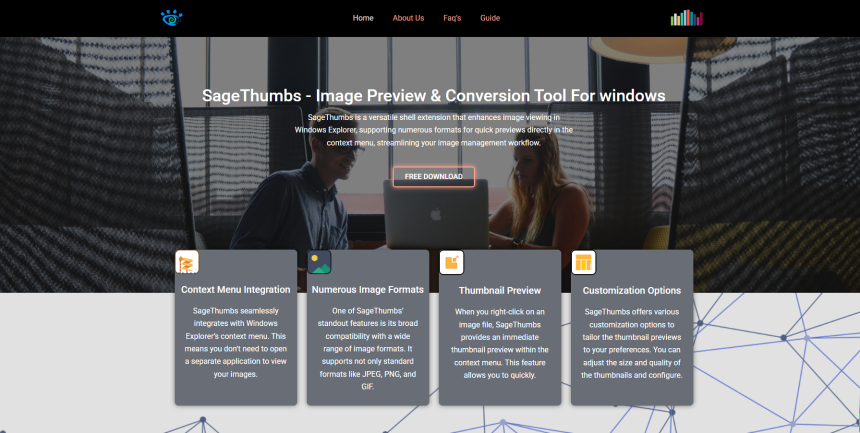
Windows users often struggle with juggling multiple photo viewers, converters, and clipboard tools just to handle simple tasks. SageThumbs steps in as a versatile Windows shell extension, bringing powerful features right into your Windows Explorer context menu. Once installed, SageThumbs adds a thumbnail handler that lets you preview hundreds of image formats without opening a separate program. Beyond previews, it offers format conversion, clipboard copying, and batch operations—all accessible through a single right-click. In this guide, we’ll explore how SageThumbs supports virtually every popular and niche image type, making it an indispensable tool for photographers, designers, and casual users alike.
Supported Image Formats Overview
SageThumbs boasts compatibility with more than 45 formats by default, plus dozens more if you install supporting libraries. Out of the box, you’ll see previews for common types like JPEG, PNG, GIF, BMP, TIFF, and ICO. Behind the scenes, it leverages codecs to extend support to RAW camera files (CR2, NEF, ARW), Adobe formats (PSD, AI), and less-common extensions such as WEBP, HEIC, and even animated formats like APNG. For each format, SageThumbs generates a quick preview thumbnail stored in the thumbnail cache, so subsequent loads are near-instant. If you’re unsure whether your favorite file type is supported, right-click and choose “Preview”—if the image pops up, you’re good to go.
Enhancing Windows Explorer with SageThumbs
Integrating SageThumbs into Windows Explorer is seamless. After installation, you’ll notice extra options under the context menu when you right-click an image file or selection. “Preview,” “Convert To,” and “Copy To Clipboard” appear alongside the standard “Open with” and “Edit” entries. If you ever find the menu cluttered, SageThumbs’ settings dialog lets you disable specific commands. You can also adjust preview window size, set default conversion destinations, and toggle multithreaded rendering for faster throughput. By embedding these functions directly into the Explorer interface, SageThumbs removes friction between file browsing and common image-related tasks.
Seamless Format Conversion Process
One of SageThumbs’ standout features is its format conversion ability. Whether you need to convert a single PNG to JPEG or batch-process a folder of RAW files into smaller, web-friendly images, SageThumbs handles it with minimal clicks. Simply select your files, right-click, choose “Convert To,” then pick your target format—JPEG, PNG, BMP, or even ICO. You can modify output quality on the fly, and converted images are saved in the same folder or a custom directory of your choice. Since SageThumbs taps into the Windows shell extension framework, it can process hundreds of files in a single operation, streamlining tasks that would otherwise require opening a dedicated image preview or editing application.
Quick Clipboard Copy from Context Menu
Copying an image directly to the clipboard typically involves opening it in an editor or viewer, selecting all, and copying—but not with SageThumbs. The “Copy To Clipboard” option lets you place the image’s bitmap data right into your clipboard in one click. This is perfect for when you need to paste screenshots into documents, chat windows, or graphic software without saving intermediate files. SageThumbs converts the selected image(s) into a clipboard-friendly format—PNG by default—and stores it, so you can paste into any compatible application immediately. You’re essentially getting a clipboard copying utility built into Explorer, reducing friction in creative workflows.
Performance and OS Compatibility
While SageThumbs is lightweight, it doesn’t skimp on performance. Thumbnail caching ensures previews appear almost instantly after the initial load. Batch operations run in parallel threads, leveraging modern multi-core CPUs for rapid conversions. CPU usage spikes are brief, and memory footprint remains modest. Compatibility spans Windows 7, 8, 10, and 11—both 32-bit and 64-bit editions. Users on Windows 11 report smooth integration without the quirks sometimes seen in legacy shell extension tools. If you’re running on ARM-based Windows devices, SageThumbs continues to function, thanks to transparent support in the latest builds. Regular updates address emerging formats like AVIF and HEIF, keeping your system ready for new image standards.
Troubleshooting Common Issues and Tips
Occasional hiccups can arise, such as missing thumbnails or conversion errors. First, ensure you’ve installed the optional codecs (e.g., if RAW previews are failing, install the Windows Camera Codec Pack). If previews don’t appear, clear the thumbnail cache via Disk Cleanup or Settings > Storage. Menu entries can clash with other Explorer extensions—disable conflicting add-ins if you see odd behavior. For large batches, consider disabling thumbnail previews temporarily to speed up the conversion process. If you receive “Access Denied” errors during clipboard copying, run Explorer as administrator or adjust file permissions. Finally, check the SageThumbs settings for format-specific quirks—some formats like ICO require square dimensions, which SageThumbs can enforce automatically.
Comparing Alternatives to SageThumbs
SageThumbs isn’t the only game in town—tools like IrfanView, XnShell, and FastStone Image Viewer also offer Explorer integration. IrfanView’s shell extension provides robust previews and batch conversion, but its interface feels dated. XnShell covers a wide range of formats, including AVIF and WEBP, but setup can be complex. FastStone’s toolset is rich, offering crop and resize options right from the context menu; however, installation adds multiple background services. In contrast, SageThumbs focuses on simplicity and low overhead while supporting nearly every common and obscure format. If you need heavy photo editing, you’ll still open a full-featured app—but for quick previews, format conversion, and image preview tasks, SageThumbs strikes the best balance between power and ease of use.
Step-by-Step Installation and Setup
- Download the latest SageThumbs installer from the official website or a trusted repository.
- Run the installer; agree to the terms and select your desired components (thumbnail only, full context menu, optional codecs).
- Choose the installation path (the default is usually fine).
- Complete the setup and reboot Explorer if prompted.
- Right-click any image file—if you see SageThumbs options, installation succeeded.
- Open SageThumbs configuration via Control Panel > SageThumbs or the Start menu shortcut.
- Enable/disable specific formats, adjust thumbnail size, and set default conversion paths.
- Test with various file types to confirm everything works. That’s it—you’re ready to save time and streamline your image workflow.
Maximizing Productivity with SageThumbs
Beyond everyday conveniences, power users can leverage SageThumbs in advanced workflows. Use it alongside sync tools like OneDrive or Google Drive to preview cloud-stored images without downloading them locally. Integrate with project management software by copying images directly into ticket comments. Web developers can generate thumbnail previews for websites in seconds. Photographers can batch-convert their RAW files into JPEGs for rapid sharing. Even casual users benefit from the ability to drag and drop icons (ICO files) when customizing folder icons or application shortcuts. By embedding these features into Windows Explorer, SageThumbs eliminates context switching, keeping you focused on the task at hand.
Conclusion
Whether you’re a creative professional, IT administrator, or home user, SageThumbs offers an elegant solution to common image-handling headaches. Its extensive image preview support, effortless format conversion, and one-click clipboard copying make it a cornerstone utility in any Windows toolkit. Lightweight and constantly updated, it stays compatible with the latest formats and operating systems. By integrating directly into Explorer’s context menu, SageThumbs reduces the need for multiple applications, saving you time and storage space. If you’ve ever found yourself wishing for faster previews or simpler conversions, give SageThumbs a try—you’ll wonder how you managed without it.