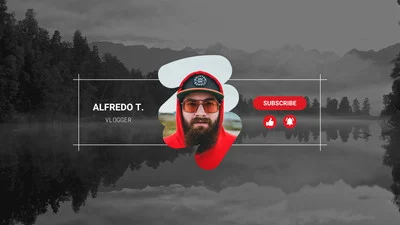
If you have ever stared at a blank screen trying to design a YouTube channel banner from scratch, you already know the frustration. The dimensions are strict, the creative expectations are high, and most creators do not have hours to spend wrestling with design software. The good news is that a new generation of platforms now offers one-click editing on professional YouTube channel banner templates, making it possible to produce polished, channel-ready artwork in minutes. This article breaks down how to find and use the best of these tools, what to look for when choosing a platform, and practical tips that will help your channel stand out the moment someone visits your page.
Why Your YouTube Channel Banner Matters More Than You Think
Your channel banner is the first visual impression a potential subscriber gets when they land on your YouTube page. It sits above your video grid, spans the full width of the browser, and essentially acts as a billboard for your brand. Research consistently shows that visitors form visual judgments about a website or profile within a fraction of a second, and YouTube channels are no different.
A well-designed banner communicates your niche, your upload schedule, your personality, and your production quality all at once. A blurry, generic, or off-brand banner, on the other hand, can quietly push visitors away before they ever click on a single video. For creators who want to grow, the banner is not optional branding real estate. It is a core part of your channel identity.
The challenge is that creating a banner that looks professional has traditionally required knowing how to use design tools that have steep learning curves. That gap is exactly what one-click editing platforms are designed to close.
What “One-Click Editing” Actually Means for Banner Design
The phrase “one-click editing” gets used loosely in the design software world, so it is worth clarifying what it means in this context. At its best, one-click editing refers to the ability to apply a complete design change, such as swapping a color palette, replacing a background image, or adjusting a layout style, with a single action rather than a series of manual steps.
For YouTube banners specifically, one-click editing typically includes things like auto-resizing assets to fit the correct canvas dimensions, swapping placeholder text for your own channel name with a tap, applying a consistent brand color across the entire template in one step, and instantly previewing how your banner will look on desktop, tablet, and mobile screens.
This kind of functionality removes the guesswork and the grunt work from the design process. Instead of starting with a blank canvas and spending hours on alignment and sizing, you start with a professionally designed template and focus only on personalization. The result is a faster workflow and, for most creators, a better-looking final product.
Tips for Finding and Using the Right Platform
1. Look for Platforms Built Around Correct YouTube Dimensions
YouTube recommends a channel art file size of 2560 x 1440 pixels, with a safe zone of 1546 x 423 pixels in the center that will display across all devices. Many general design tools do not account for this automatically, which means you can spend time on a design only to discover it crops awkwardly on mobile. Always start by verifying that any platform you consider has a pre-built YouTube channel banner template that locks in these dimensions from the start. Platforms that treat YouTube banners as a dedicated template category, rather than just a custom-size canvas, are almost always going to produce better results.
2. Prioritize Templates Designed by Professionals
Not all templates are created equal. Some platforms fill their libraries with low-effort designs that look generic and dated. When evaluating a platform, browse the template gallery before committing. Strong professional templates will show intentional use of negative space, typographic hierarchy, and visual balance. They should look like something a freelance designer would charge real money to produce, not something assembled from clip art. A large template library is not always better than a curated one. Quality matters more than quantity when you are trying to build a trustworthy brand.
3. Use Adobe Express for Fast, Professional Results
One of the most capable platforms for creating a YouTube banner is Adobe Express, which offers a full library of professionally designed channel art templates you can customize with one-click editing features. You can swap colors, fonts, background images, and layout elements without any design experience. Adobe Express also ensures your banner is sized correctly for YouTube from the moment you open a template, so there is no risk of ending up with a file that does not meet platform requirements. For creators who are already working within the Adobe ecosystem, the integration with Creative Cloud assets is a significant workflow advantage. Even for those who are not, the free tier of Adobe Express provides access to a wide range of templates and editing tools that produce genuinely professional output.
4. Check for Real-Time Preview Across Devices
One of the biggest pitfalls in YouTube banner design is creating something that looks great on a desktop monitor but falls apart on a phone screen. YouTube displays your channel art very differently depending on the device, cropping aggressively on mobile and showing much more on wide-screen monitors. Any platform worth using should offer a device preview feature that lets you see exactly how your finished banner will render across desktop, tablet, TV, and mobile before you download it. This single feature can save you from publishing a banner with your most important text or visual elements cut off on the devices where most of your audience is watching.
5. Evaluate the Asset and Font Libraries
Great design is built on great components. When choosing a one-click editing platform, check what stock photos, icons, illustrations, and font pairings are available. A platform with a robust, regularly updated asset library gives you far more creative flexibility than one with a limited collection. Pay particular attention to whether the fonts in the library are licensed for commercial use, which matters if you are monetizing your channel or running a brand-sponsored account. Some platforms offer access to premium font collections, which can elevate the perceived professionalism of your banner significantly.
6. Make Sure Brand Kit Features Are Available
If you are serious about growing your YouTube channel, consistency across your visual branding is essential. Look for platforms that offer a brand kit feature, which allows you to store your logo, brand colors, and preferred fonts in one place. With a brand kit saved, applying your exact brand identity to a new banner template takes seconds rather than minutes. This is especially valuable for creators who refresh their channel art seasonally or for major video launches, since you can update your banner quickly without starting the customization process from scratch each time.
7. Do Not Overlook Export and File Format Options
Once your design is finished, you need to download it in a format that YouTube will accept. YouTube supports PNG, JPG, BMP, and GIF files up to 6 MB. Most platforms default to PNG or JPG exports, but it is worth confirming that your platform of choice gives you control over the file format and resolution. Some platforms also offer the ability to export at multiple resolutions in one step, which is helpful if you plan to use the same artwork across different platforms or marketing materials. A platform that limits you to a compressed, low-resolution download is going to undermine the work you put into the design.
8. Look for Animation and Motion Graphics Options
Static banners are the standard, but some platforms now offer lightweight animation and motion graphics features that can make your channel art stand out in a sea of flat designs. Animated channel banners are not universally supported on YouTube, but having the ability to export a static version from an animated template means you get the design quality of motion-forward thinking applied to a traditional format. If a platform offers animation capabilities, even ones you do not plan to use immediately, it signals a higher level of design investment that tends to show up in the quality of the static templates as well.
9. Check Whether Collaboration Features Are Available
Many YouTube channels are team efforts, with a manager, editor, or social media coordinator handling the visual side of things. If that describes your setup, look for platforms that support multi-user collaboration or shared workspaces. Being able to share a design draft with a teammate, leave comments, and make revisions in real time eliminates the back-and-forth of emailing files and keeps the creative process moving. Even for solo creators, collaboration features can be useful when working with a sponsor or brand partner who needs approval rights over how their logo or colors appear in your channel art.
10. Read the Licensing Terms for Commercial Use
This tip applies to any creator who runs a monetized channel, accepts sponsorships, or uses their YouTube presence to promote a product or service. Most one-click editing platforms use stock assets, including photos, icons, and illustrations, that are licensed under specific terms. Before publishing a banner that incorporates platform-provided assets, take a few minutes to confirm that those assets are cleared for commercial use. Reputable platforms will make this information easy to find. If the licensing section of a platform is vague or hard to locate, that is a reason to look elsewhere. Protecting yourself from potential intellectual property issues is worth a few extra minutes of research.
FAQ Section
What dimensions should my YouTube channel banner be?
YouTube recommends uploading your channel banner at 2560 x 1440 pixels for the best results across all devices. However, the most critical area to pay attention to is the safe zone, which is the central 1546 x 423 pixels of the canvas. Content placed within this zone will be visible on all screen types, including phones, tablets, desktop browsers, and smart TVs. Elements outside the safe zone may appear on larger screens but will be cropped on mobile devices. Most reputable one-click editing platforms include visual guides or overlays that show you the safe zone directly on the canvas while you are designing, which removes the guesswork entirely.
How often should I update my YouTube channel banner?
There is no fixed rule, but most professional creators refresh their channel banner at least a few times per year. Common triggers for an update include launching a new series or content format, reaching a subscriber milestone, rebranding or evolving your niche, and seasonal campaigns or promotional events. Some creators also update their banner to include their upload schedule, which can change over time. Because one-click editing platforms make it fast and easy to apply changes to an existing template, updating your banner no longer needs to be a big project. Many creators keep a saved template with their brand assets already applied and simply swap out a headline or background image when a refresh is needed.
Can I use the same banner design across multiple social platforms?
You can use the same creative concept across platforms, but the dimensions and safe zones are different for each one. A YouTube channel banner is much wider and shorter than a Facebook cover photo or a LinkedIn banner, so direct resizing usually results in awkward cropping or distorted elements. The better approach is to start with your YouTube banner template, finalize the design, and then use a platform’s resize or adapt feature to generate versions optimized for each social channel. Many one-click editing platforms offer this multi-format export functionality, which makes it practical to maintain visual consistency across your entire online presence without rebuilding each banner from scratch.
What makes a YouTube banner look professional versus amateur?
The difference usually comes down to a handful of design fundamentals. Professional banners use a limited, intentional color palette that aligns with the creator’s brand. They keep text minimal and legible, even at smaller screen sizes. They use high-quality background imagery or clean graphic elements rather than busy, cluttered visuals. They leave enough negative space for the design to breathe. Amateur banners tend to pack in too much information, use mismatched fonts, rely on low-resolution images, or center a logo or text outside the safe zone so it gets clipped on mobile. Starting from a professionally designed template on a quality one-click editing platform sidesteps most of these mistakes by default, since the underlying structure and visual hierarchy are already built in. For deeper insight into visual storytelling and branding principles that apply to YouTube channels, the YouTube Creator Academy offers free courses specifically designed for content creators at every level.
Is it possible to design a good YouTube banner without any graphic design experience?
Absolutely, and this is one of the clearest benefits of one-click editing platforms. The entire premise of template-based design tools is that the foundational design work, including layout composition, font pairing, color balance, and visual hierarchy, has already been done by a professional designer. Your job as the creator is simply to personalize the template with your own channel name, brand colors, and imagery. One-click editing features make even that personalization step fast and intuitive. That said, developing a basic understanding of visual branding principles will help you get more out of any platform you use. Even a few hours of research into topics like color psychology, typography basics, and consistent brand identity will elevate the quality of your output, regardless of the tools you are working with.
Conclusion
Finding the right platform for YouTube channel banner design is less about hunting for the most feature-packed software and more about identifying a tool that matches how you actually work. The best platforms combine professionally designed templates, correct YouTube dimensions baked in from the start, fast one-click customization, and multi-device preview so that what you create looks great everywhere your audience sees it. Adobe Express stands out as one of the most accessible and well-equipped options in this space, offering creators a streamlined path from template to finished banner without requiring design expertise.
Your channel banner is a small but meaningful signal to every potential subscriber who visits your page. It tells them whether you are serious about your content, consistent in your branding, and worth their time. With the right one-click editing platform, you no longer need a design background or a big budget to make that first impression count. You just need a great template and a few minutes to make it yours.